
User guide · Chapter 1 of 4
Using the Bluepencil Development Model
One linked model takes a site from the first question, "is it worth pursuing?", to a priced, phased scheme ready for delivery. This guide shows what each level is for, what it saves you, and how to use it, step by step.
The benefits
What the Model does for you, whichever level you use.
Time saved
A first answer in 5 minutes, and a complete site in days rather than weeks. No spreadsheet to rebuild for each site.
One set of numbers
Capacity, land budget, policy, appraisal and cashflow share the same figures, so they can never disagree.
Honest about certainty
A confidence range shows how firm the figures are, and narrows as you replace defaults with evidence.
Sourced figures
Every policy figure is marked Verified or Default, and the reports print your source, so advice stands up in front of a council.
Grows with the site
Start at Feasibility and move up a level when better information arrives. Your figures carry across.
Reports ready to send
A PDF report at every level, for a client, a landowner, a board or the council.
How long it takes
Typical times with the Model, for a competent user who knows it and has the site's information to hand.
| Level | Starting point | Time with the Model |
|---|---|---|
| Feasibility | The default figures, with only the site area, council and land price entered | 5 minutes |
| Feasibility | With your own figures in place of the defaults | 20 minutes |
| Outline | A complete Outline site, with the relevant policy, cost and value information to hand | 1 day |
| Detailed Design | A complete Detailed Design site, with a masterplan and the figures carried over from Outline | 1 to 2 days |
Getting going
Every level works the same way. Learn these five things once.
Open a site from My sites
Log in at bluepencilmodel.com. My sites lists every site you have saved. Choose New site to start from the Model's worked example figures, New blank site to start with no site figures (at Feasibility the Model's standard figures are kept; at Outline and Detailed Design every figure starts at zero), or open a saved site by its name.
Start here: three things about your site
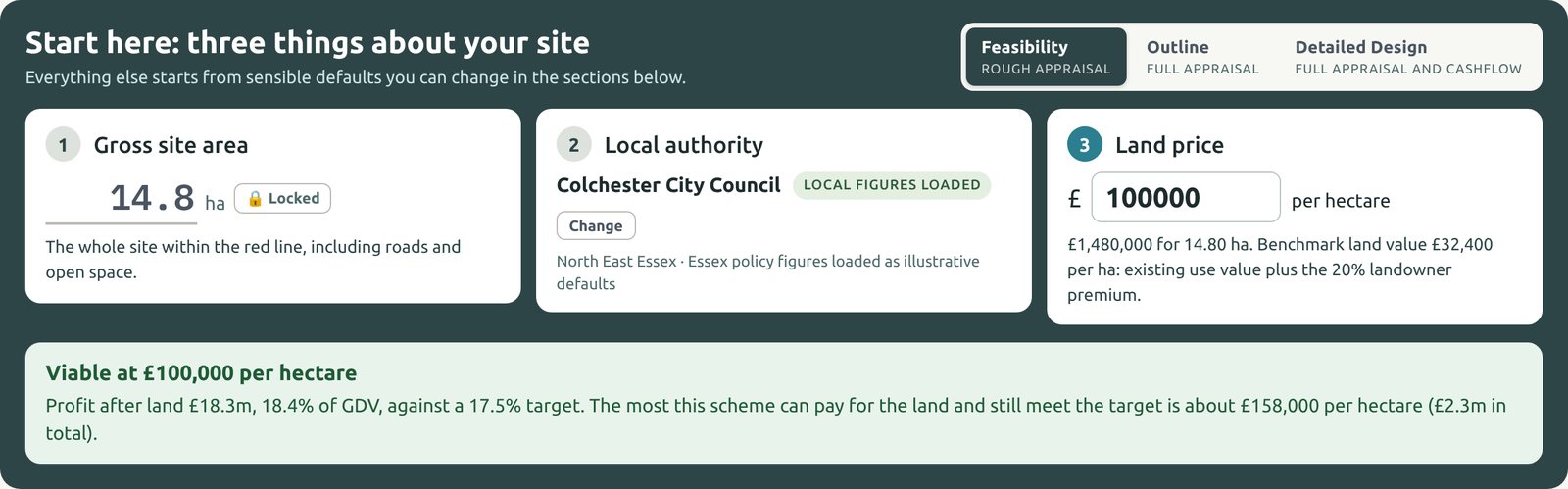
The panel at the top asks for the gross site area, the local authority and the land price per hectare. Everything else starts from sensible defaults. The box underneath says straight away whether the site is viable at that price, and the most it could pay for the land.
The level switch, Feasibility Outline Detailed Design, sits at the top right of the panel.
The results stay on screen
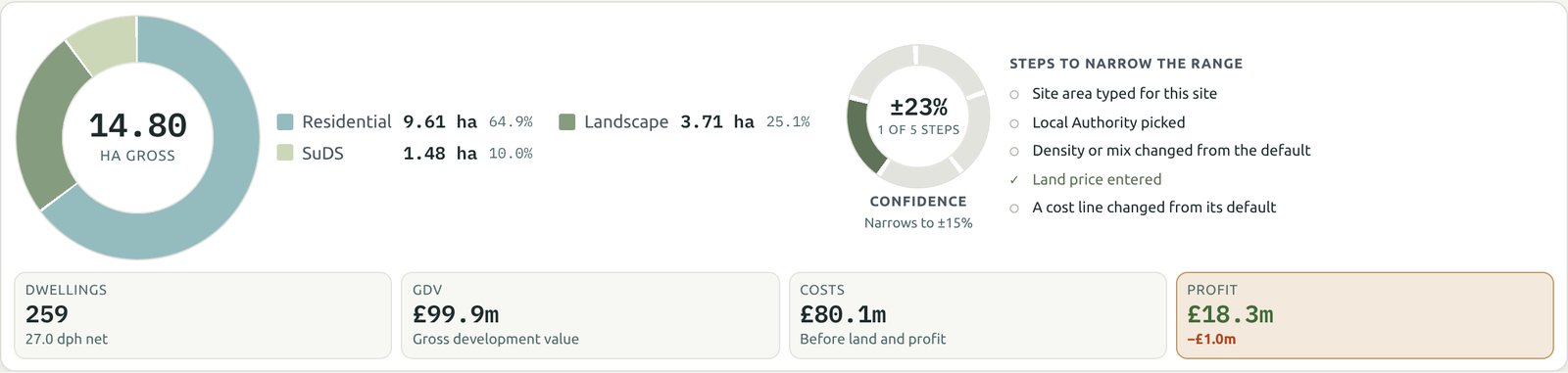
The land-use donut, the confidence ring and the four headline figures (dwellings, GDV, costs and profit) stay in view as you work. Change anything and they update at once. The checklist beside the ring shows which steps would narrow the range.
Open one section at a time
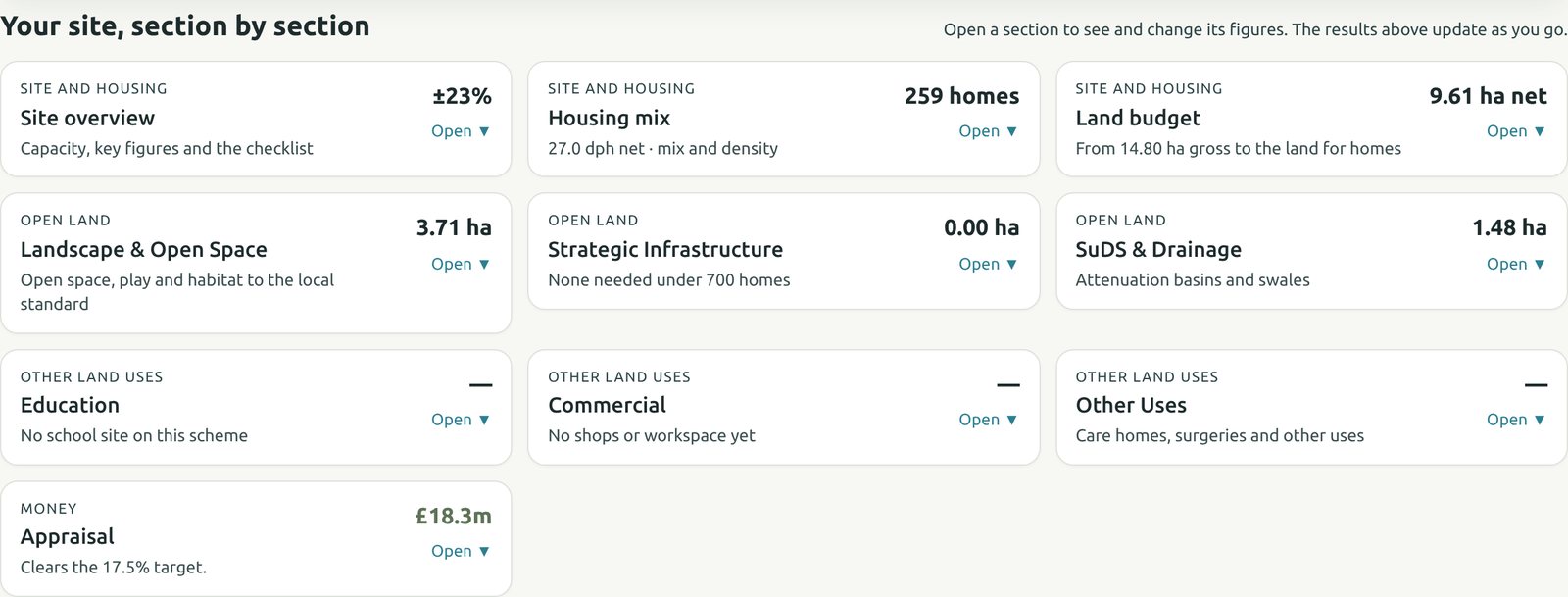
Under the results, each part of the site is a card showing its headline figure. Click a card to open its tables beneath it, and click again (or Close ▲) to put them away. Long sections have a row of smaller buttons, so you see one part at a time.
Save, and save each level under its own name
Name the site in the box at the top and press Save. It is saved to your account and opens on any computer. A saved site is saved again automatically as you work.
Before moving up a level, type a new name in the name box, such as "Mill Lane O" after "Mill Lane F", and press Save. The earlier version stays saved under its old name, so each stage of your advice stays on record. Duplicate on My sites does the same.
Reports: PDF report at the top opens the report for your level. Tick the sections you want, then Print / Save as PDF. Print from Chrome or Edge for the best page breaks.
Chapter 2: Feasibility
The first look at a site: capacity by character, the land budget and a rough appraisal.